
Create your dot in the ChatGPT mobile app
If you're on a Pro, Business, or Enterprise ChatGPT plan, you can now set up a personal AI assistant ('dot') from your phone that remembers context across conversations and keeps working on cloud-based tasks in the background. It's useful for delegating multi-step research or follow-up work you'd otherwise have to babysit yourself.
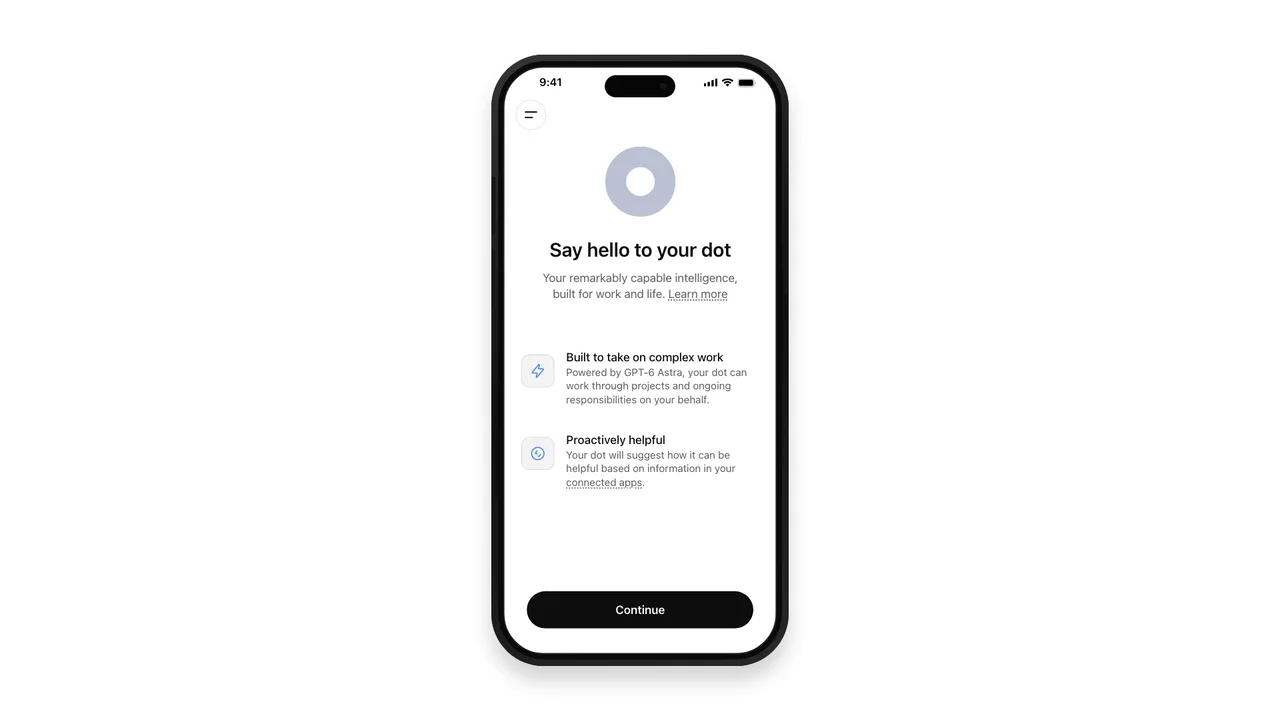
What changed
Source summary
ChatGPT's "dots" feature — a persistent AI assistant with its own cloud computer that keeps context across conversations, works in the background, and follows up on tasks — can now be created, named, customised and connected to plugins directly from the mobile app. Dots can start or continue Codex threads, search past ChatGPT conversations, and read or edit scheduled ChatGPT Work automations. Dots are rolling out gradually: available to users 18+ outside the EEA/UK/Switzerland on Pro 100/200/500, worldwide on Business Premium, and worldwide (off by default, admin-enabled) on Enterprise. Only one personal computer can be connected at a time, and it must be online with the ChatGPT app open for the dot to use local skills.
Why it matters to your work
Practical interpretation
If you're on a Pro, Business, or Enterprise ChatGPT plan, you can now set up a personal AI assistant ('dot') from your phone that remembers context across conversations and keeps working on cloud-based tasks in the background. It's useful for delegating multi-step research or follow-up work you'd otherwise have to babysit yourself.
When this could help
Delegating a multi-step research task, coordinating a project with recurring updates, or picking up ChatGPT or Codex work from your phone that you started elsewhere
A dot keeps context across conversations and devices, works in its own cloud computer even when your computer is off, and tracks progress on a task so you do not have to re-explain it each time you check in
How to get started
Open ChatGPT on your phone or desktop and create your dot: give it a name and customise its appearance.
Provider guidance ↗Connect any plugins your dot should have access to.
Provider guidance ↗Open ChatGPT directly into your dot conversation to pick up where you left off, from any connected device.
Provider guidance ↗Give your dot one ongoing task such as research or a Codex thread to continue, and review what it brings back.
Provider guidance ↗
Try this · The SCALA method
Give AI a clearer brief
- Situation
- You have ongoing work that needs repeated follow-up over several days, and you want an AI assistant to continue working on it between your check-ins
- Consultant
- A persistent AI research and coordination assistant that retains context across conversations and devices
- Action
- Research [topic] over the next few days. Check in on [specific sources or sites] periodically, and bring back a short summary with anything that has changed, rather than me having to ask you again each time.
- Language
- Short summary with changes flagged; any decisions needing your judgement called out separately
- Ask
- Confirm the specific sources or threads to monitor, and how often to check in
SCALA suggested prompt · Adapt the context and check the result.
Learn the SCALA method →Build it into your routine
SCALA suggested workflow
Trigger
You have a task that needs repeated follow-up over several days, such as a project status, a changing information source, or an ongoing piece of research
Delegate
Give your dot a clear description of the task and which sources or threads it should draw on
Check in
The dot keeps context and continues work in the cloud, including while your computer is off, and tracks progress
Decide
Review what it brings back at each check-in and confirm any decision it flags as needing your judgement
Repeat
Keep using the same dot and conversation for the same ongoing responsibility so context carries forward
What to check
- Only one personal computer can be connected to a dot at a time, and it must be online with the ChatGPT app open for the dot to use local skills. Source ↗
- Tasks a dot runs in ChatGPT Work or Codex count toward those products usage limits, though conversations with the dot itself do not. Source ↗
- Some websites block cloud browsers or require extra verification, which can limit what a dot can do unattended. Source ↗
- Enterprise workspaces have dots off by default; a workspace administrator must enable them before anyone in the org can use one. Source ↗
Sources & provider guides
Official documentation checked 12 Oct 2026. SCALA prompts and workflows are suggestions, not claims of hands-on testing.
Source & availability
This is a summary of a published provider announcement, with practical context from SCALA’s feed.
Plan, region, workspace and rollout conditions may affect access in Australia. Check the original source for current availability.
learn.chatgpt.com