
Gemini for macOS adds new natural language capabilities
If you use a Mac, this makes Gemini much faster to use for everyday tasks — hold one key and talk instead of typing, useful for drafting emails, brainstorming, or asking quick questions while working in any app.
What changed
Source summary
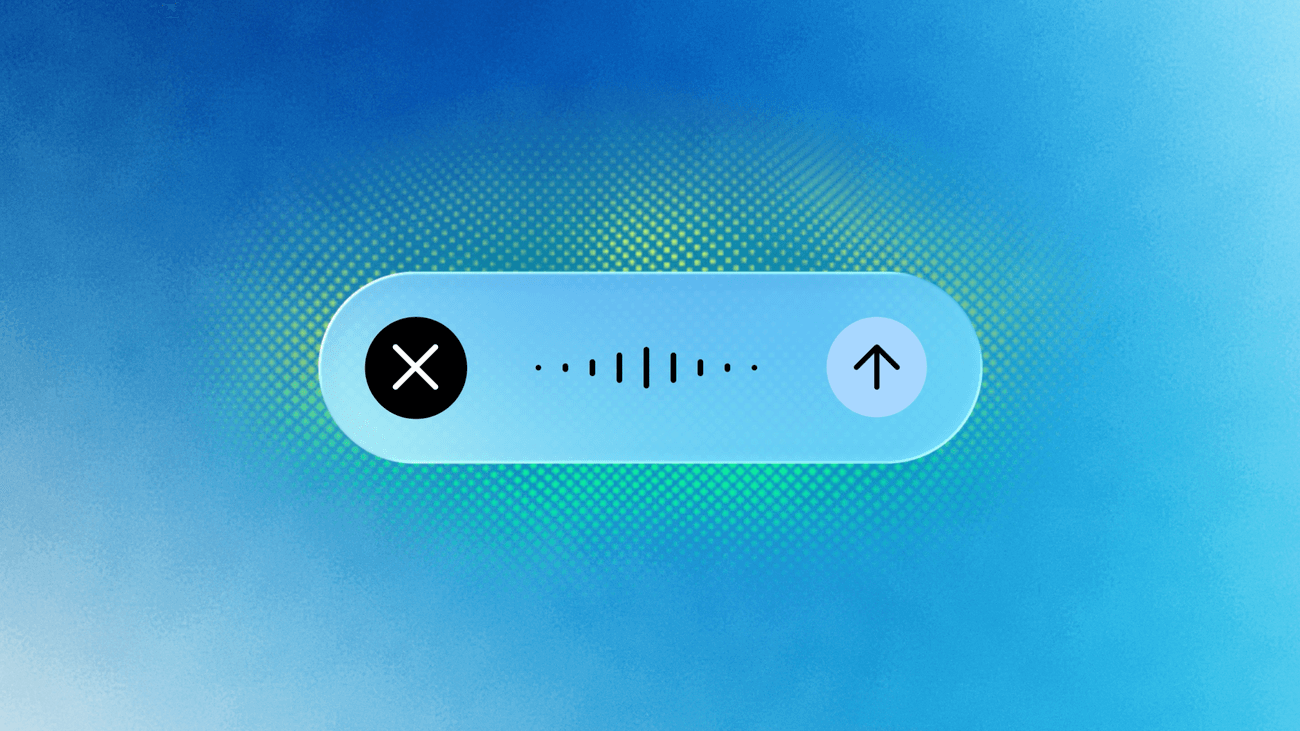
Google added natural-language voice capabilities to the Gemini app for macOS — holding the Fn key lets users dictate, ask questions, or generate content naturally within any application window.
Why it matters to your work
Practical interpretation
If you use a Mac, this makes Gemini much faster to use for everyday tasks — hold one key and talk instead of typing, useful for drafting emails, brainstorming, or asking quick questions while working in any app.
When this could help
Useful any time you'd rather talk than type — drafting an email from highlighted reference material, turning rough notes into a summary, or requesting an edit to an image or document without switching apps.
Gemini for macOS can now create, edit and summarise using voice alone, directly in your active window. By default it works as intelligent dictation (clean transcription with filler words removed and mid-sentence corrections handled); switching on Gemini reasoning in settings lets it read on-screen context to summarise highlighted files, rewrite highlighted text, or generate/edit images based on something you reference.
How to get started
Long-press the Fn key and speak into any desktop window — by default this transcribes your speech into clean text and inserts it at your cursor.
Provider guidance ↗Turn on Gemini reasoning in settings to let it read on-screen context and act on it — e.g. highlight local files or documents and ask for a summary, or highlight text and ask it to change tone or restructure it.
Provider guidance ↗Reference an on-screen design or illustration and ask Gemini to generate or edit an image based on it, e.g. a dark-mode version.
Provider guidance ↗
Try this · The SCALA method
Give AI a clearer brief
- Situation
- You're working in a macOS app and want to dictate, summarise, or rewrite text hands-free instead of typing.
- Consultant
- Act as a hands-free writing assistant.
- Action
- Using only what I highlight or dictate, transcribe, summarise, or rewrite it as I request — don't add information that isn't in what I've shown or said.
- Language
- Match my request's format (clean dictated text, summary, or rewritten draft).
- Ask
- Ask me whether I want plain transcription or an edit/summary/rewrite before acting, if it isn't clear.
SCALA suggested prompt · Adapt the context and check the result.
Learn the SCALA method →What to check
- English only at launch — other languages are described as 'coming soon' with no date given. Source ↗
Sources & provider guides
Official documentation checked 12 Oct 2026. SCALA prompts and workflows are suggestions, not claims of hands-on testing.
Source & availability
This is a summary of a published provider announcement, with practical context from SCALA’s feed.
Plan, region, workspace and rollout conditions may affect access in Australia. Check the original source for current availability.
blog.google