Find your routine next steps on the post-meeting screen in Google Meet
Useful for teams that want to turn meeting discussions into draft follow-up emails and task lists. Check the detailed prerequisites in the practical guide and review generated outputs before relying on them.
What changed
Source summary
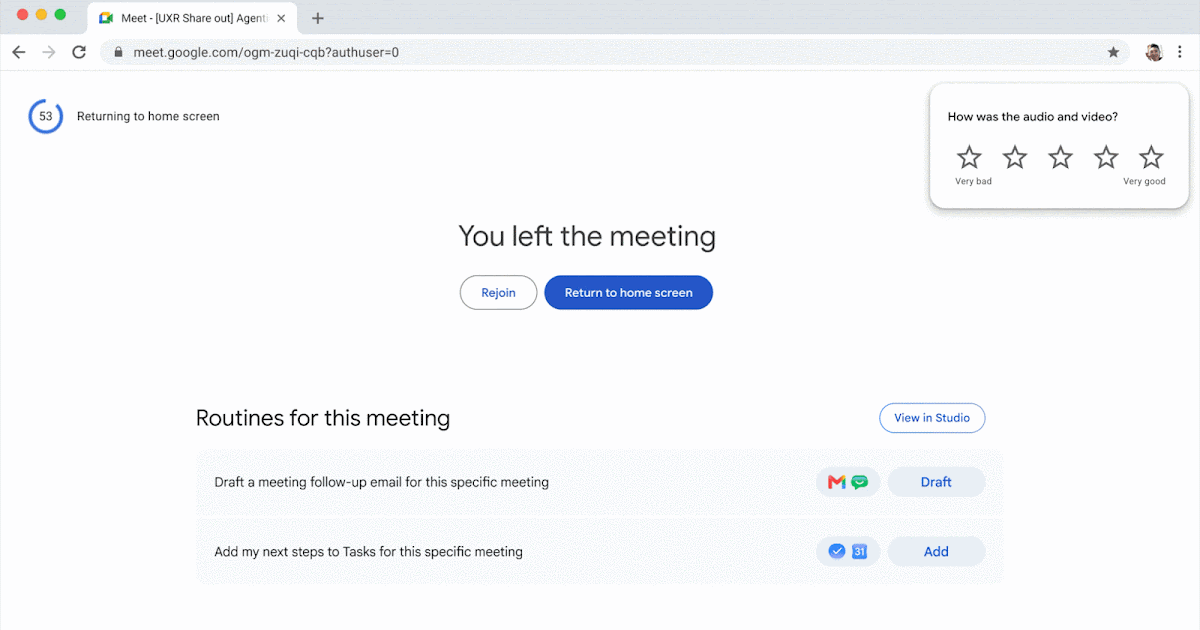
Google announced next steps on the Google Meet post-meeting screen, powered by Gemini and Workspace Studio. The initial routines can draft follow-up emails in Gmail and add action items to Google Tasks. Users can enable a next step across their meetings when Take notes for me is turned on. The extended rollout began on 5 October 2026 for Rapid Release and Scheduled Release domains and may take longer than 15 days. Availability includes Business Standard and Plus, Enterprise Standard and Plus, and Education accounts with the Google AI Pro for Education add-on. The practical guide links to Google Meet Help for detailed prerequisites and follow-up-email eligibility.
Why it matters to your work
Practical interpretation
Useful for teams that want to turn meeting discussions into draft follow-up emails and task lists. Check the detailed prerequisites in the practical guide and review generated outputs before relying on them.
When this could help
Use this after eligible meetings to draft follow-up emails or add action items to Google Tasks. Enabling a next step for a repeating series turns it on for future meetings in that series; Take notes for me and Ask Gemini must be on for the meeting. Suggested steps may vary or not appear. Follow-up-email eligibility is narrower: check the requirements below.
Google Meet next steps turn meeting discussions into follow-up drafts and task lists. Google describes this as a way to avoid manual data entry and save time. Review the outputs before using them.
How to get started
Before or during the meeting, make sure 'Take notes for me' and 'Ask Gemini' are both turned on — routine next steps only appear if the meeting was noted this way.
Provider guidance ↗After the meeting ends, on the post-meeting screen, look for the 'Routines for this meeting' section.
Provider guidance ↗Turn on a next step: drafting a follow-up email or adding action items to Google Tasks. Treat the email output as drafting only; review and send it yourself. The follow-up-email step requires you to be host, a meeting outside a repeating series and at least one participant outside your organisation.
Provider guidance ↗For a repeating meeting series, enabling a next step turns it on for future meetings in that series. The announcement also describes an all-meetings option. Google lists separate eligibility requirements for drafting follow-up emails, including that the meeting must not be part of a repeating series; it does not separately explain how those requirements interact with the all-meetings option.
Provider guidance ↗The first time you turn on a next step, Workspace Studio emails you a confirmation; some steps (such as draft emails) also send a Google Chat notification once complete.
Provider guidance ↗To inspect or stop a routine in Workspace Studio, open studio.workspace.google.com, select Flows on the left, find the flow marked system and select Manage flow. Choose Activity to check its runs or Turn off to stop it. You can also stop a step from the post-meeting Routines for this meeting section using Cancel or its off control.
Provider guidance ↗
Try this · The SCALA method
Give AI a clearer brief
- Situation
- Google Meet next steps created a Gmail draft follow-up after a meeting. I have checked that I may share the following draft and context with this organisation-approved AI tool: [paste permitted draft and meeting context].
- Consultant
- Act as a careful business editor checking an AI-drafted client follow-up before I send it under my name.
- Action
- Compare the draft against the notes. Flag every name, date, figure, commitment or action owner in the draft that is missing from the notes or differs from them. Suggest wording fixes. Do not add commitments, figures or details that aren't in the notes. Use only an organisation-approved AI tool and notes you are permitted to share. Remove personal or confidential information that is not needed for this check.
- Language
- Australian English, plain and professional. First give a short bulleted list of changes with a one-line reason for each, then a revised draft.
- Ask
- Before revising, ask me about anything in the notes that is ambiguous, such as unclear owners or deadlines, and what tone suits [recipient].
SCALA suggested prompt · Adapt the context and check the result.
Learn the SCALA method →Build it into your routine
SCALA suggested workflow
After each eligible meeting
Review the proposed tasks and any draft follow-up email before relying on them. Check task owners and deadlines against what was agreed, and review and send the email yourself. If a next step is enabled for a recurring series, check its activity after later meetings; do not assume it ran.
What to check
- For drafting follow-up emails, Google requires you to be the meeting host, the meeting not to be part of a repeating series, and at least one participant to be outside your organisation. Google does not separately explain how these conditions interact with the all-meetings option. Source ↗
- Next steps can be turned on or off but cannot be edited. Source ↗
- Suggestions vary by meeting content and settings and may not appear for every meeting. Source ↗
- Only two routine next steps (follow-up email, Tasks) are available at launch; Google says more are planned but gives no date. Source ↗
Sources & provider guides
Official documentation checked 13 Oct 2026. SCALA prompts and workflows are suggestions, not claims of hands-on testing.
Source & availability
This is a summary of a published provider announcement, with practical context from SCALA’s feed.
Plan, region, workspace and rollout conditions may affect access in Australia. Check the original source for current availability.
workspaceupdates.googleblog.com